How to Turn Off a Product Manually in Shopify?
Sometimes you may want to temporarily stop selling a product without deleting it — for example, when an item is out of stock, seasonal, or under revision. Shopify allows you to turn off a product manually in a few simple ways. This guide explains all safe methods, step by step.
Method 1: Set Product Status to Draft
Method 1: Set Product Status to Draft
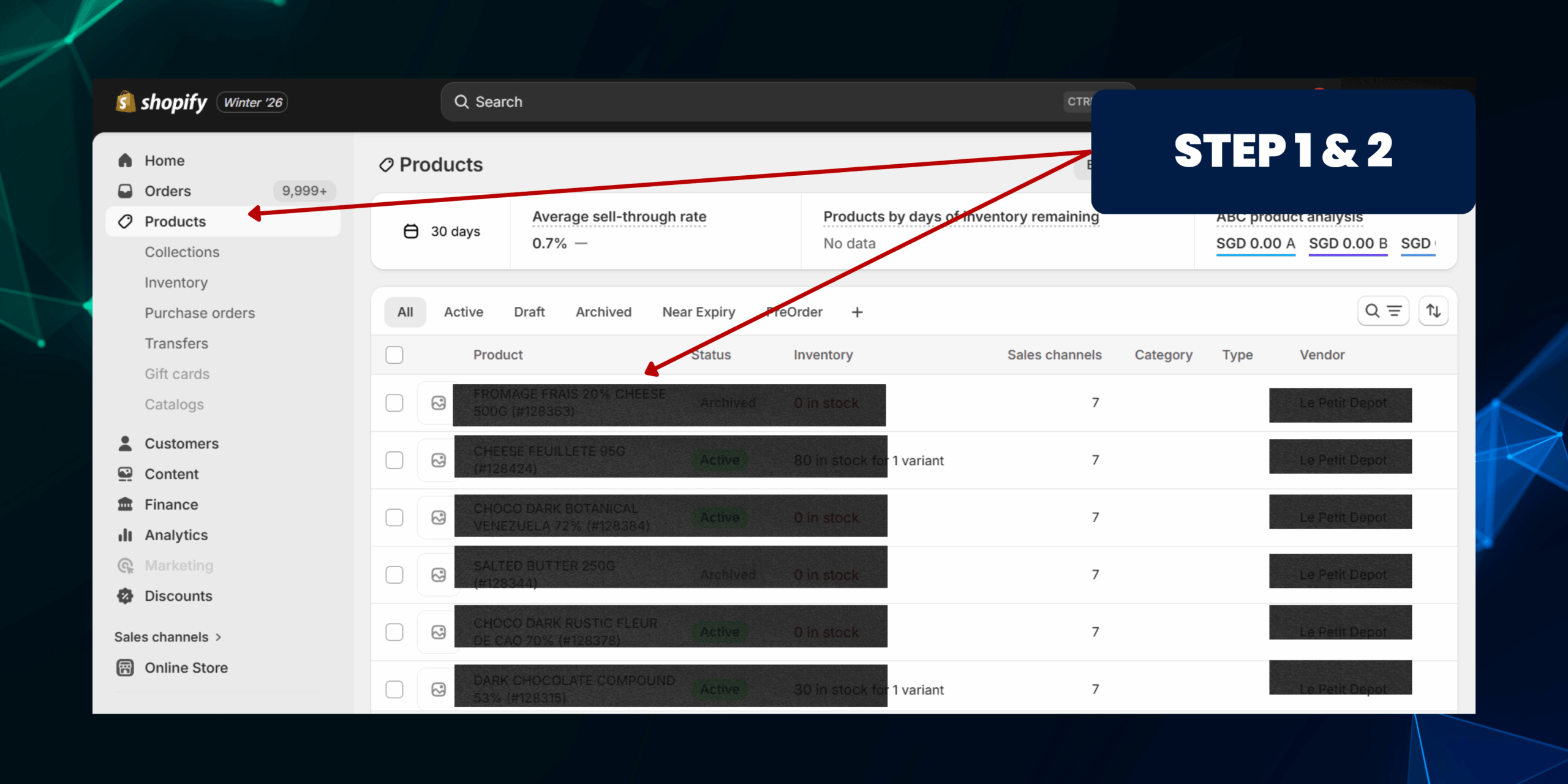
Step 1: Go to Products
• Log in to Shopify Admin
• Click Products from the left menu
Step 2: Select the Product
• Click the product you want to turn off
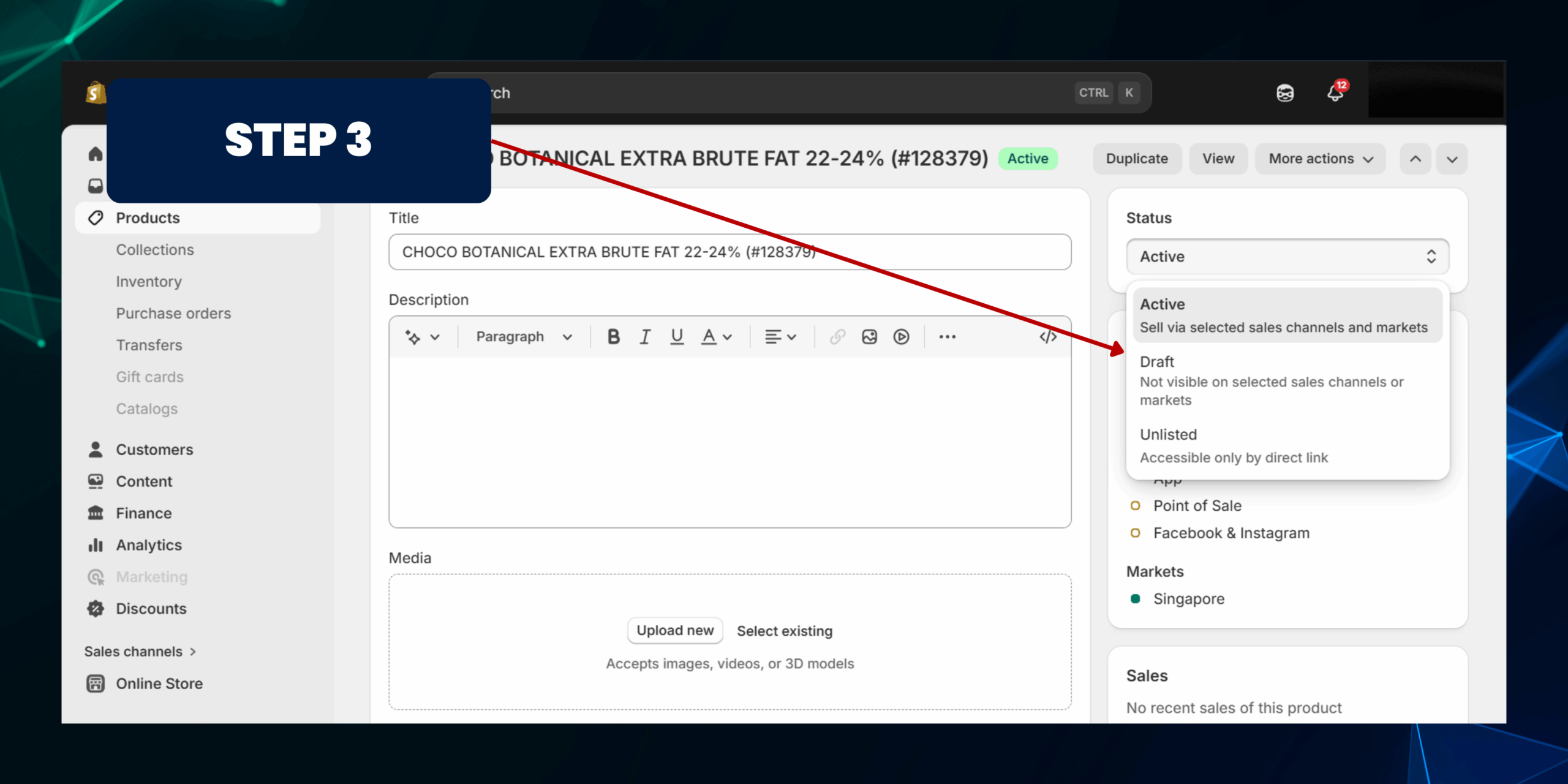
• At the top right, locate Product status
• Change status from "Active" to "Draft"
Step 4: Save Changes
• Click Save
✅ Result: The product will no longer be visible on your storefront and cannot be purchased.
Method 2: Remove Product from Sales Channels
Method 2: Remove Product from Sales Channels
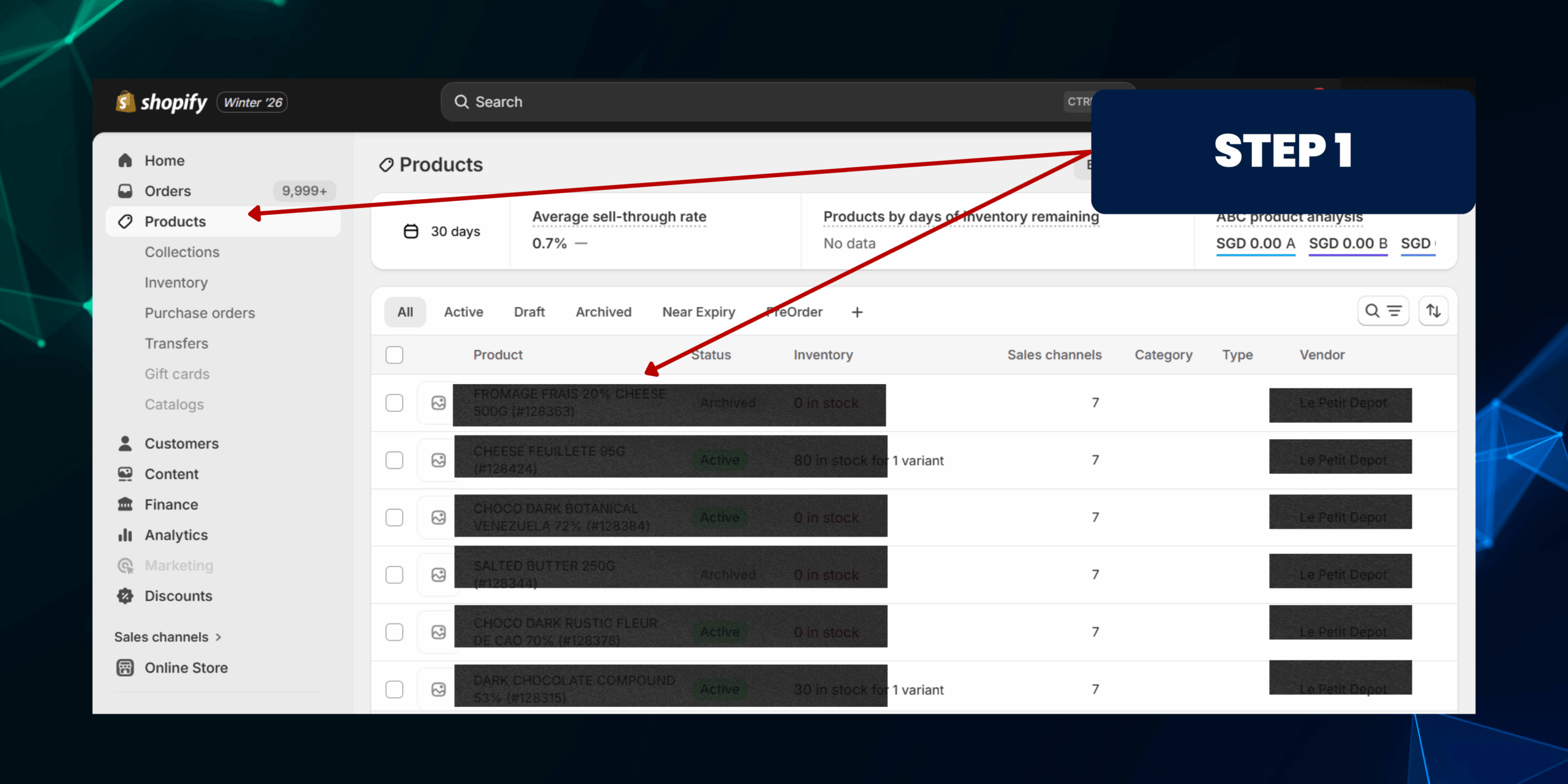
Step 1: Open the Product
• Go to Products
• Select the product
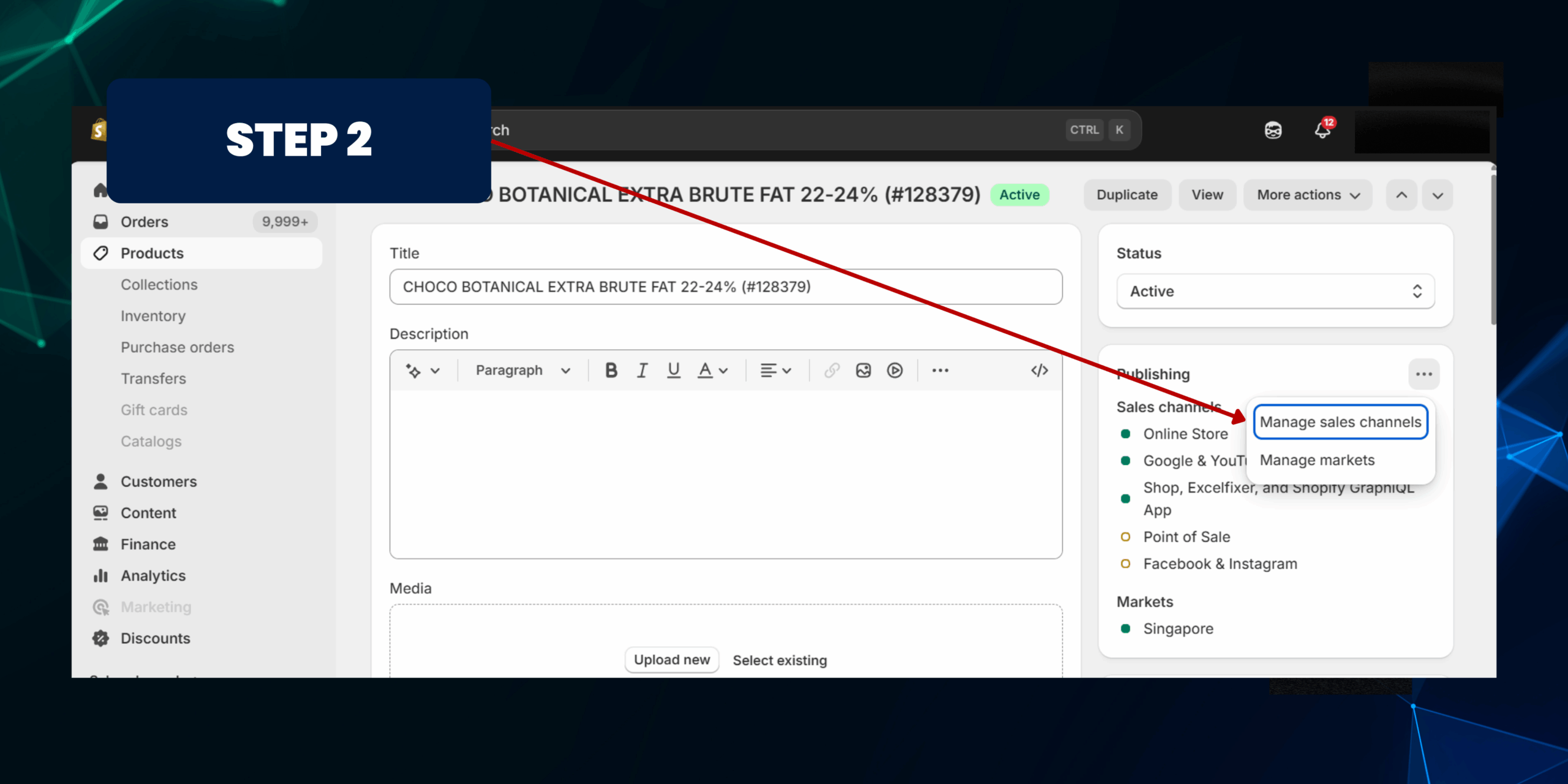
In the Sales channels and apps section:
• Click "Manage sales channels"
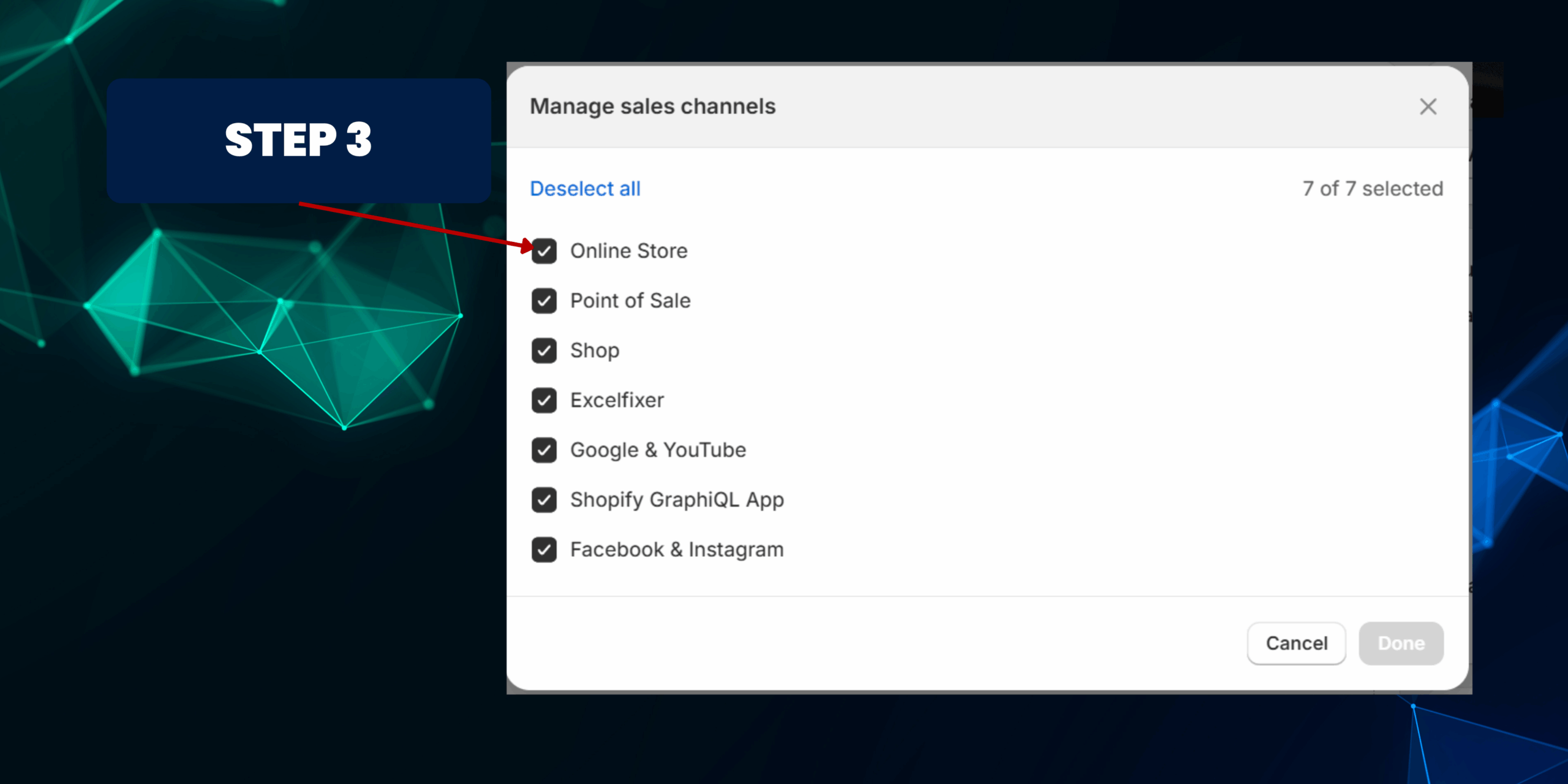
• Uncheck Online Store
• Click Done
Step 4: Save
• Click Save
✅ Result: The product is hidden from your website but still exists in admin, POS, or other channels.
Method 3: Add a "Deactive" Tag Manually
Method 3: Add a "Deactive" Tag Manually
Step 1: Open the Product
• Go to Shopify Admin
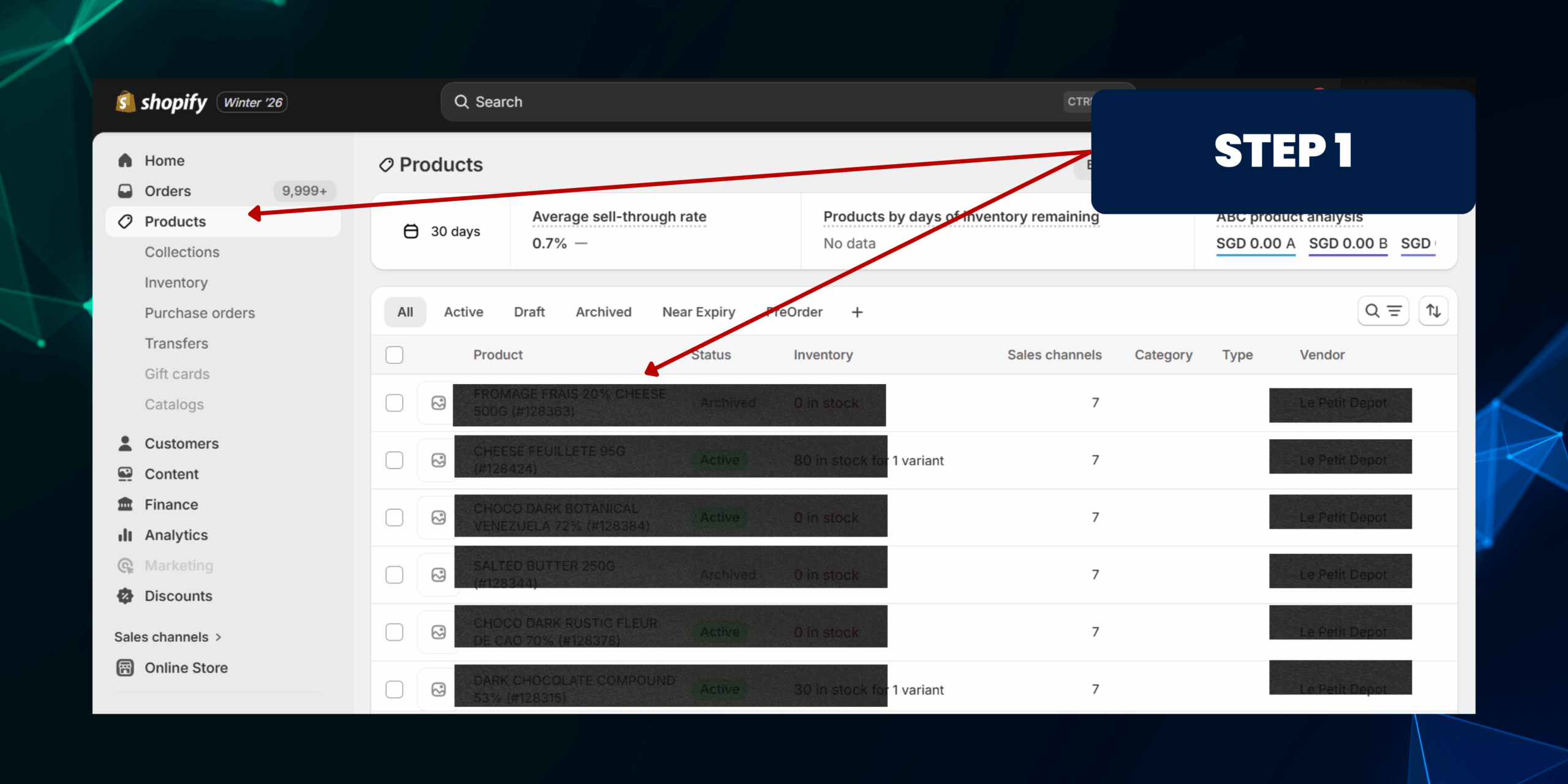
• Click Products
• Select the product you want to mark as inactive
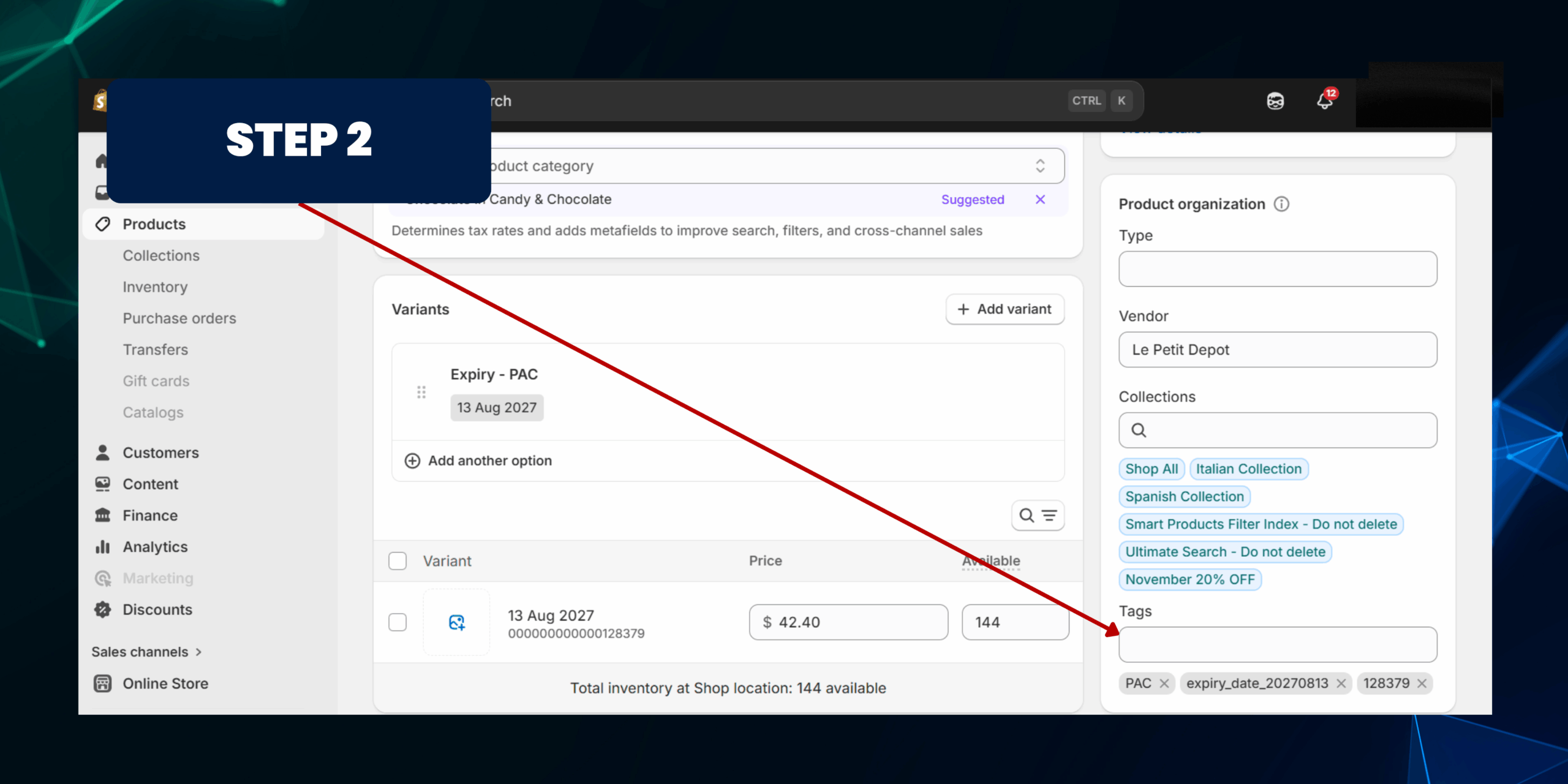
• On the right side, find the Tags section
•Type "Deactive"
• Press Enter to add the tag
• Click Save
⚠️ Important:
Adding a tag like Deactive does NOT automatically hide or disable the product. By itself, the product will remain visible and purchasable. To make the tag effective, you must combine it with Automation.
For example, using Shopify Flow (Shopify Plus), you can automate actions triggered by the "Deactive" tag, such as:
• Removing the product from sales channels
• Setting the product status to Draft
• Sending internal alerts to your team
Without such automation or rules, the tag acts only as an internal label and will not prevent the product from appearing in your store or being sold.