How to Make Sure a Product Displays on the Shopify Storefront

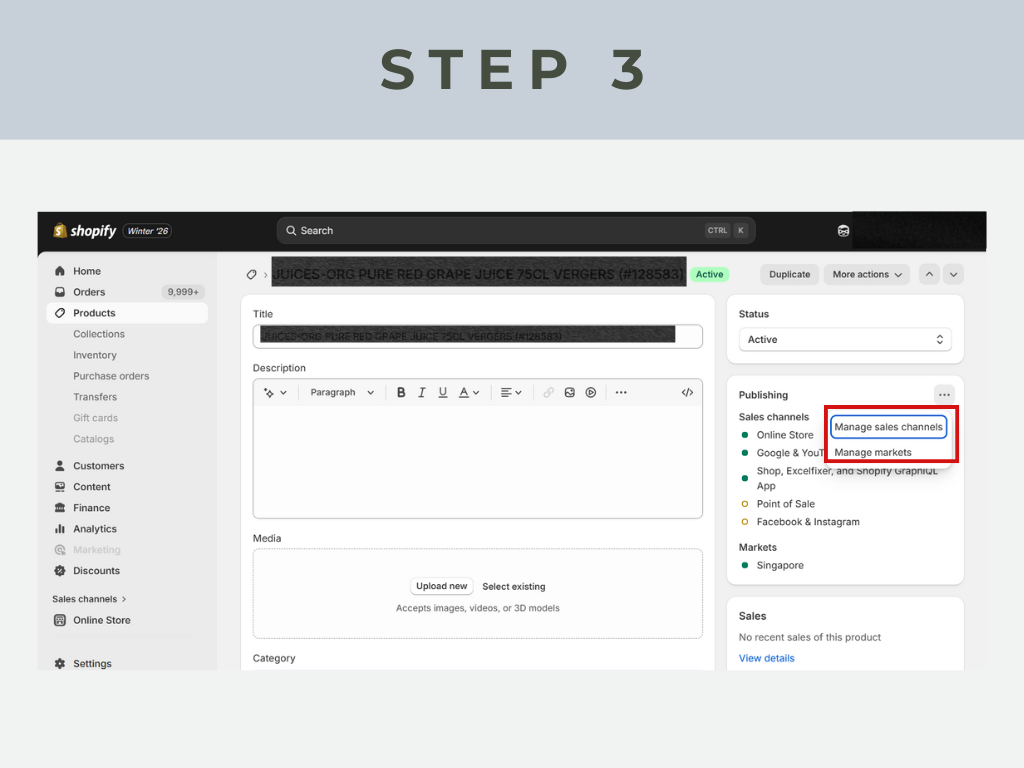
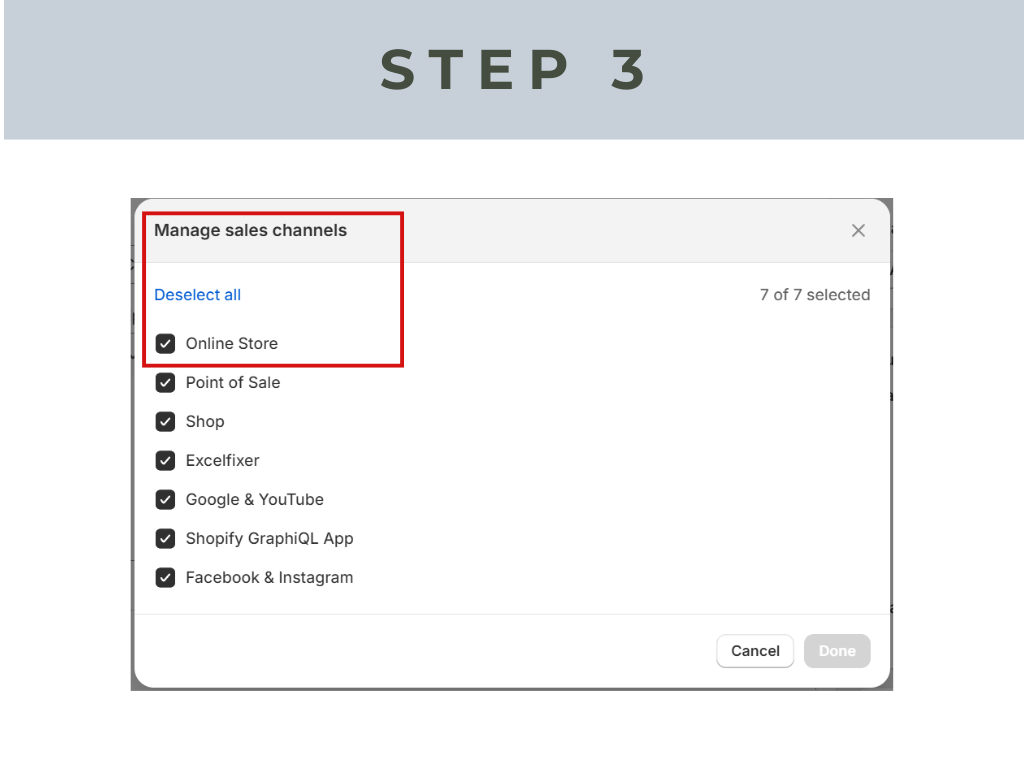
Sometimes a product looks Active in Shopify admin but still doesn’t show on the storefront. This usually happens due to sales channel, status, or market settings. Follow the steps below to ensure your product is fully published and visible on your online store.
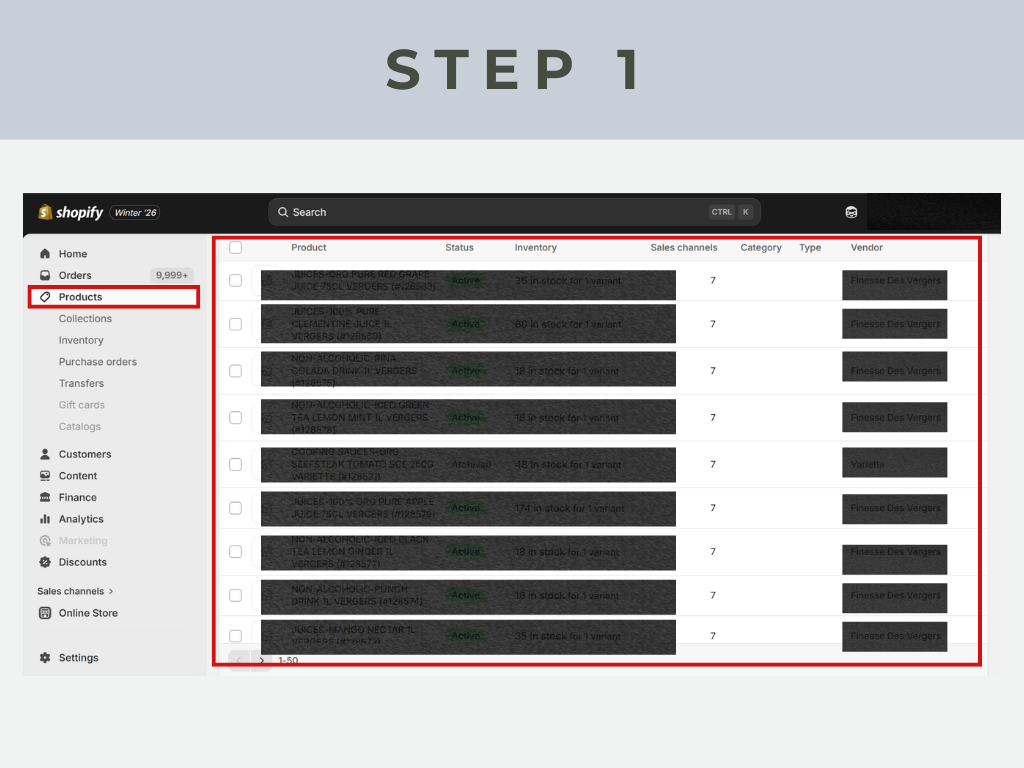
Step 1: Open the Product in Shopify Admin

What to do:
• Go to Products → All products
• Click on the product you want to display on the storefront

📌Why this matters: All visibility settings (status, sales channels, markets) are controlled at the product level. If even one setting is incorrect, the product won’t appear online.

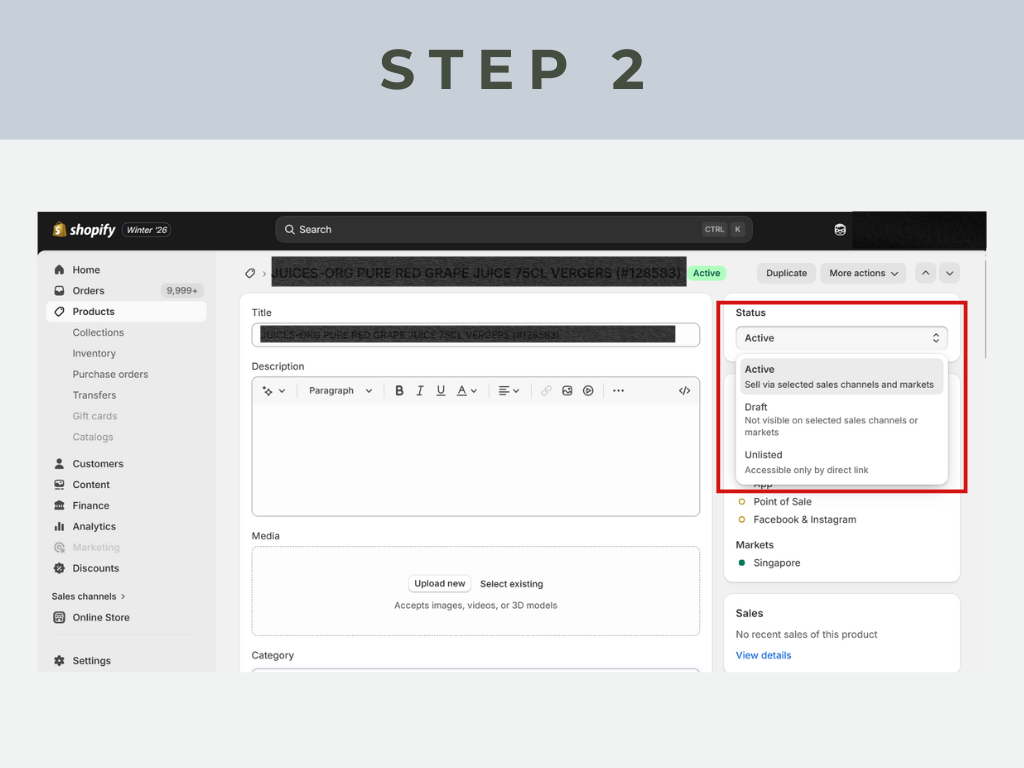
Step 2: Check Product Status Is Set to “Active”

What to do:
• On the right-hand panel, find Status
• Make sure Active is selected

Status options explained:
• Active → Product can be sold on selected sales channels and markets ✅
• Draft → Product is hidden everywhere ❌
• Unlisted → Product only accessible via direct link ❌

✅ Always use “Active” for storefront visibility

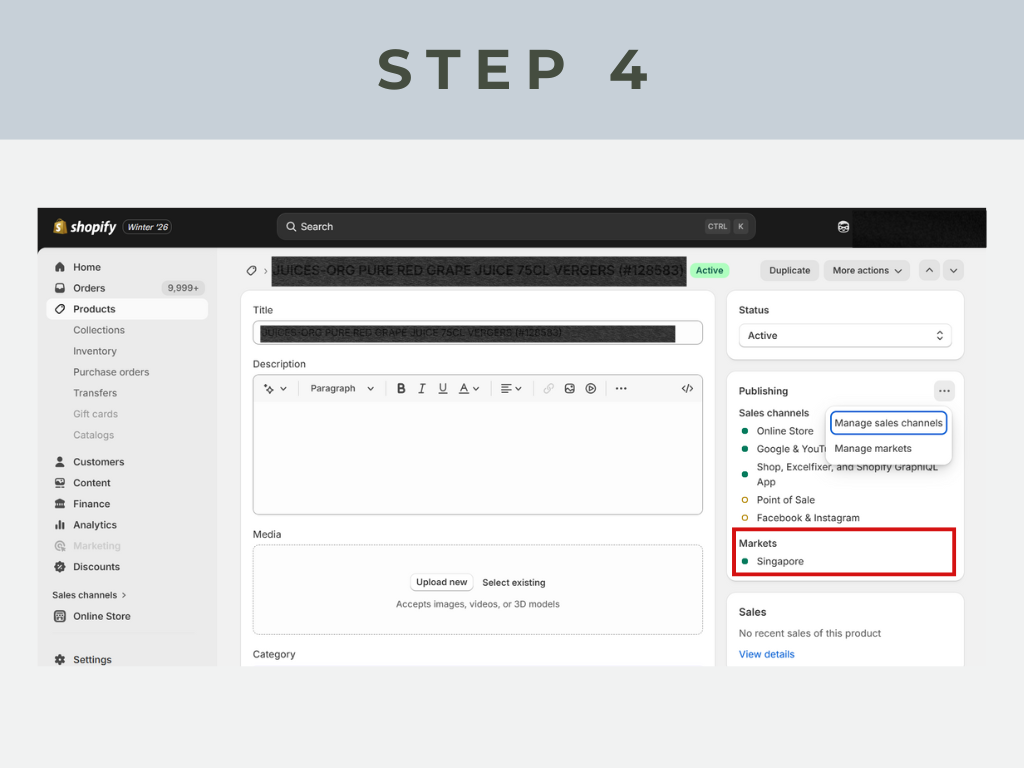
Step 4: Verify Market Availability

What to do:
• Under Markets, check that at least one market (e.g. Singapore, Malaysia, Global) is enabled
• Ensure the product is available for that market

📌Why this matters: If a product is not assigned to an active market, it won’t appear for customers in that region—even if everything else is correct.

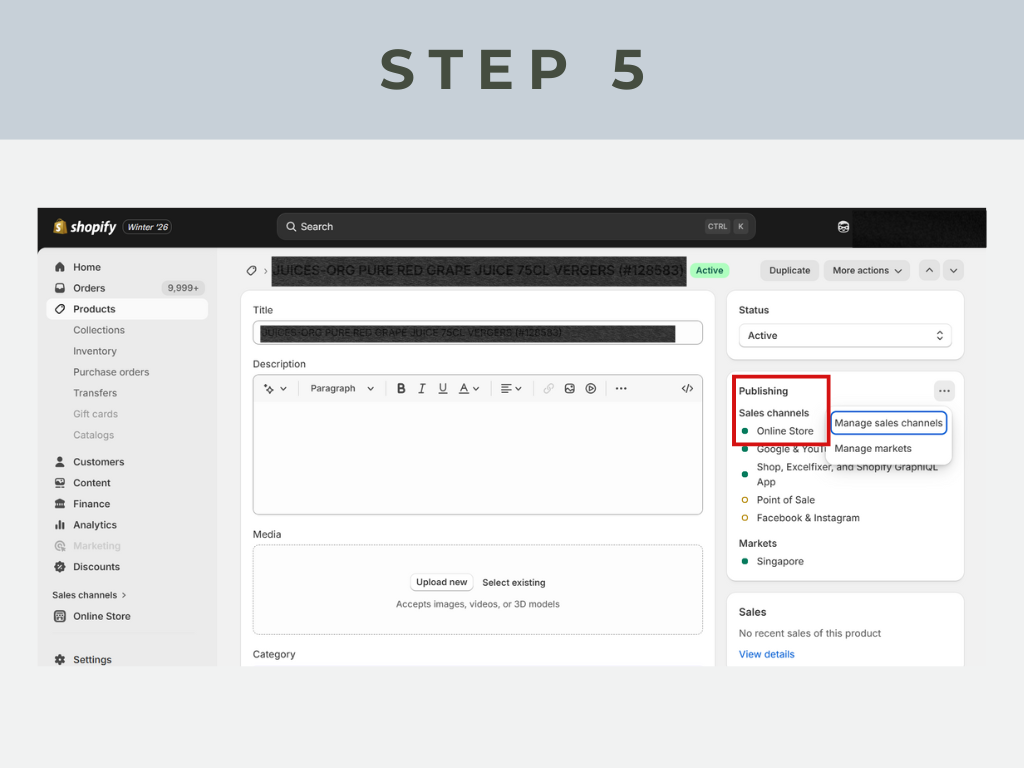
Step 5: Confirm Sales Channel Indicators

Look at the Publishing → Sales channels section:
• 🟢 Green dot → Product is visible on that channel
• 🟡 Yellow dot → Channel connected but product not fully available

📌 Your goal: 🟢 Online Store must be green

🧠 Common Mistake (Very Important)

Active does NOT automatically mean visible.
A product must be:
• Active
• Assigned to the Online Store
• Available in the correct Market

📌 Missing just one of these will hide the product from customers.